Setting up Microsoft Outlook Express
Microsoft Outlook Express 6 setup guide, these settings are similar in all other versions of Microsoft Outlook Express®.
Please follow these steps to setup Microsoft Outlook Express:
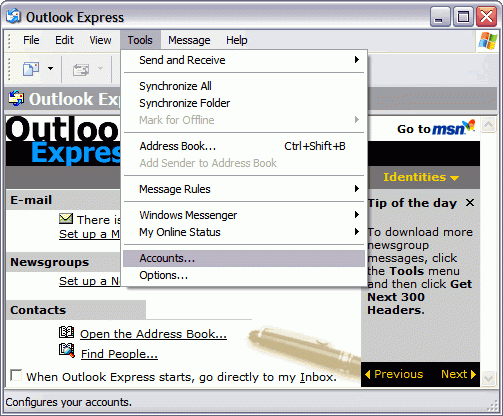
STEP 1: In Microsoft Outlook Express, from the Tools menu, select Accounts.
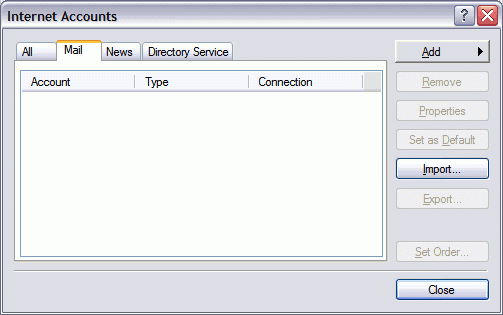
STEP 2: Go to the Mail tab and from the Add menu, select Mail.
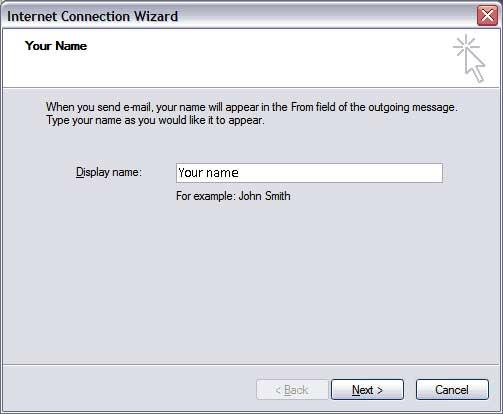
STEP 3: In the Display Name field, enter your full name and click Next.
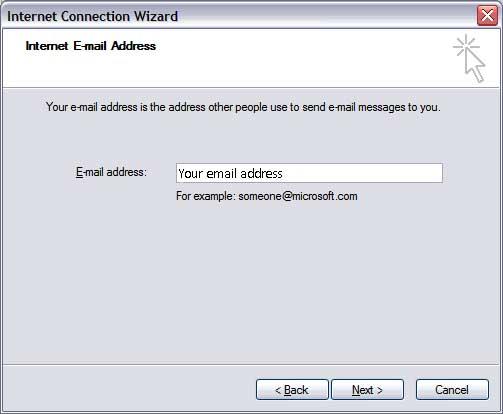
STEP 4: In the E-mail address field, enter your email address and click Next.
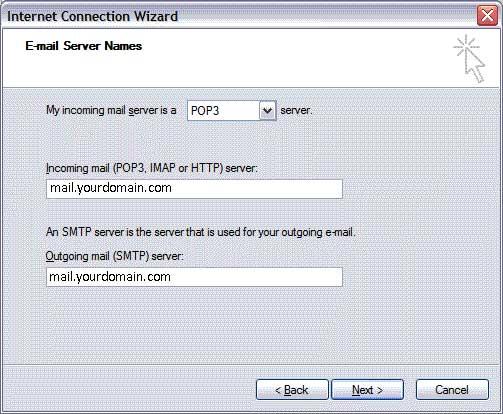
STEP 5: On the E-mail Server Names page, complete your information as follows:
My incoming mail server is a POP3 or IMAP.
Incoming mail (POP3, IMAP or HTTP) server: mail.yourdomain.com
Outgoing mail (SMTP) server: mail.yourdomain.com
Click Next.
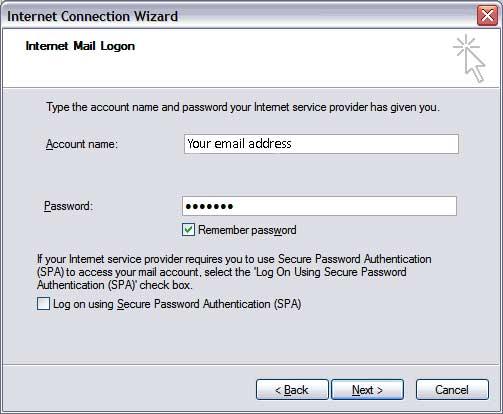
STEP 6: In the Account Name and Password fields, enter your email address and password, and then click Next.
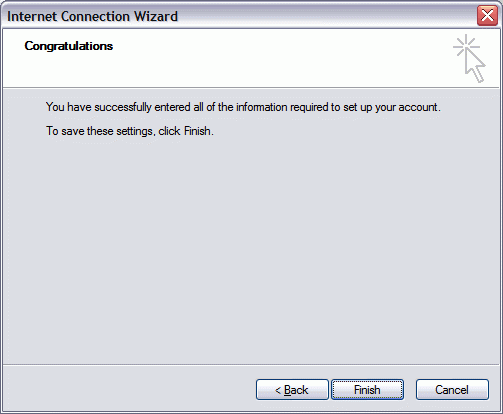
STEP 7: On the setup confirmation page, click Finish.
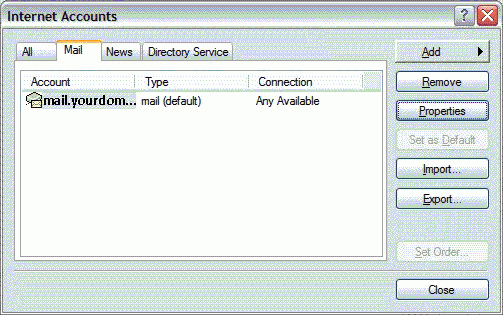
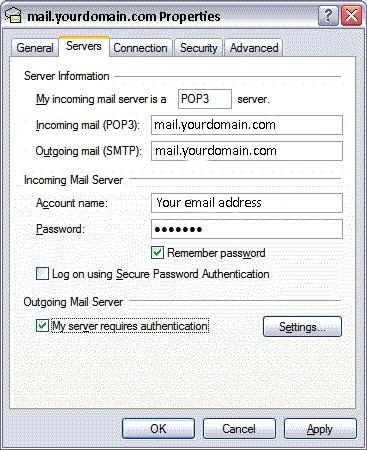
STEP 8: On the Mail tab, select the account you just created, and then click Properties.
STEP 9: Go to the Servers tab.
STEP 10: Select My server requires authentication, and then click Apply.
STEP 11: Go to the Advanced tab.
STEP 12: In the Server Port Numbers section, change Outgoing mail (SMTP) to 26, and then click OK.
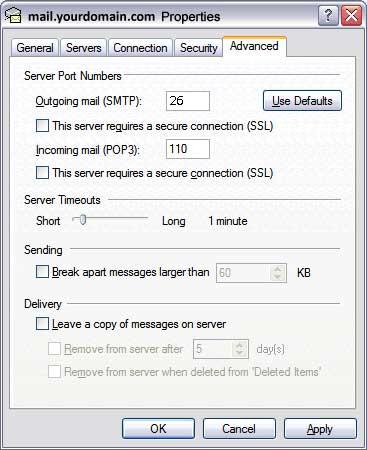
STEP 13: (Optional) If you want to keep a copy of email messages stored on your email provider's servers, select Leave a copy of messages on server.
STEP 14: Your Outlook Express account is now set up. Click Close to close the Internet Accounts window and return to your Outlook Express.
NOTE: As a courtesy, we provide information about how to use certain third-party products, but we do not endorse or directly support third-party products and we are not responsible for the functions or reliability of such products. Outlook Express® is a registered trademark of Microsoft Corporation in the United States and/or other countries. All rights reserved.